Badblog

welcome to our blog

We are Learncodz.


Posts

Comments

The Team

Blog Codz Author

Connect With Us

Join To Connect With Us

Portfolio

  • Magento is a very powerful and thus slightly difficult to tame CMS. It is built on the mighty Zend framework, and it often becomes a difficult task to create or edit Magento templates. Here in this article, I’ll try to compile a brief list of useful Magento template development functions, which are used frequently during theme development. We have to cover a lot in this article, so without further ado, I’ll start explaining the functions.

    One distinguishing characteristic of Magento is its layout feature. This is an added layer which is not present in most other CMSs. Magento layouts are defined through XML tags. As a best practice, custom XML code is usually added in the local.xml file present in the layout folder, as it is the file which is loaded at the very last, and functions written in it override all other functions.

    Using XML code, we can add different CSS and JS files in Magento blocks. One benefit of using this approach is that we can ensure that CSS and JS files are only loaded in layouts which need them. This way we can avoid unnecessary loading of CSS and JS files, and thus reduce page load time.

    We can use the following code to add a CSS file in any layout block.

    Here the reference name contains the name of the block where we’ll add that CSS/JS file. In this example we’re adding a CSS file, so the type parameter was skin_css, but if we needed to add a JS file, the type parameter would change to skin_js. The <params /> tag is intentionally left empty here.

    Using the code below you can unset a child of one parent block and assign that child block to another parent block. For instance you can unset the poll block (child block) from the sidebar (old parent block) and assign that poll block to any new parent block, like the footer.

    If you only need to remove a block, you can use just the first part of the above code. Similarly, if you only need to assign a new block to already existing block, just use the second part of the code.

    CMS blocks are particularly handy in template creation, because they give a non‑technical user the power to easily add content in this block from the admin panel. CMS blocks can be inserted in any layout block using the code below.

    Another important function which is quite frequently used in XML files is assigning templates to different layout blocks. You can do that easily by using the code template below.

    If you already have some template assigned and want to change it, you can use this code:

    Although XML files are an important part of any Magento template that defines template layouts, PHP files are the real building blocks which do the actual task of filling up those layout blocks with useful content.

    These are the functions which are used throughout the template pages.

    We can use two different approaches to generate many of these URLs. One is by using getURLs (like getBaseUrl, getSkinUrl, etc.), and the other is by using a helper/model class. To keep things simple here, we’ll try to use the getURL approach in most cases. For example, to get the store URL you can use this simple function:

    Similarly, we can generate the URL of the current page like this:

    In the same fashion, we can dynamically generate the URL of any specific page using the code below:

    The following two approaches can be used to access any file in the skin directory. As most CSS, JS, and image files reside in the skin directory, references to this location are made hundreds of times in every template.

    If you intend to fetch any resource from skin directory through secure access, you can just pass an additional parameter of array('_secure'=>true) to accomplish that.

    Using the getBaseURL() function we can also access several other directory URLs. Here are some examples:

    While creating/editing templates for Magento, quite frequently we have to insert static text in different places. It could be an instruction for users, some button text, or anything else. To ensure that it is ready for translation into other languages, I advise you to put the content like this:

    Product and Category pages are the most important part of any eCommerce CMS. While creating Magento templates, you’ll be working on these pages most of the time. Here I’ve listed some frequently used functions for these pages, which will facilitate you in your development endeavors.

    When you are on a Category page, you can use this function to load the current category.

    You can also use this function to serve the same function:

    Sometimes you need to reference a category through its ID number. This function will come in handy in instances like that:

    As with categories, you can also access a product through its ID, using the function below:

    In Magento, products have another unique identifier other than ID, and that is SKU. You can also reference products via their SKU using this function:

    You can access the product images with customized parameters (size, style, etc.) using this function. Please note that this function will only work in a product/view/media.phtml file.

    The Cart and Checkout pages are also very important parts of an eCommerce website. The functions related to them will not only help you in creating these pages, but also assist you in showing cart details in the sidebar, footer, or header.

    Using the function below, you can use the count of total items in the cart.

    You can loop through the items recently added to the cart using the code below:

    Here I’ve only shown the PHP code. You can insert the HTML in it as per your style requirements.

    You can also show the subtotal of the items added in the cart by using this function:

    Lastly, you can use these two functions to generate dynamic links to the checkout and cart pages respectively:

    CMS Pages are the pages of the store where user-created content is published. Some examples of such pages are the About Us page, the Privacy Policy page, and the Terms & Conditions page. Though these pages usually serve as a place to put user-created static content, many times you have to enter dynamic content in them, for example a dynamically generated link to the store URL or the skin files URL. Below we’ll discuss how to handle such scenarios.

    Please note that the PHP functions explained above do not work in the CMS pages content area.

    Just as we use Mage::getBaseUrl(); in the PHP template files to access the store URL, we can use this function in CMS pages to access the homepage URL:

    Similarly, the following function is the alternative to the $this->getSkinUrl('images/imagename.jpg'); function to be used in a CMS page:

    Likewise, this function is similar to the $this->getUrl('mypage.html'); function, to access a specific page.

    The media files can also be easily accessed from CMS pages, using the function given below:

    You can also call a Magento static block from within a CMS page content area, using this function:

    Caching is also an important part of Magento, like any other CMS. The model controlling the caching subsystem in Magento is Mage_Core_Model_Cache. To access the cache, we use it through an already instantiated object accessible at Mage::app()->getCache(). Here I’ll enlist the cache functions used to save, load, and clear cache objects.

    To load a cache object, we use the getCache() function:

    After cache object loading, we use the following function to save an item in it.

    An example of such saving could be:

    In the above example, we save the string Save this string into cache. In order to access that in future, we give it a key (string_key), then we give it a tag (string_tag), and lastly, we give it lifetime of 1 hour (60*60 seconds).

    Once we are done saving the value in cache, we can now retrieve it by using the load(); function and passing on the string_key as a parameter:

    Similarly, we can remove that entry saved in cache by using the remove(); function, and passing on the string_key as a parameter:

    You may be wondering by now, of what use is the array we used for tagging. The purpose of such tagging is to perform a function on mass scale, by referring to all the cache entries which have a particular tag assigned to them. For instance, if we use the following code, it’ll delete all the entries in the cache that have the string_tag array assigned to them.

    Since we’ve explained cache functions, I guess mentioning sessions becomes mandatory. In Magento, session variables can be as easily saved, loaded and removed as cache variables. I’ll try to explain that with two examples.

    Now we have saved into cache $msgOne as ValueOne and $msgTwo as ValueTwo. In order to retrieve these two, we’ll use these functions:

    Here I have deliberately saved and loaded two variables into session, so that you can understand how the set, get, and unset prefixes work.

    Just like saving and loading, the removal process is fairly similar for session variables:

    Lastly, you can use this handy function to check whether a customer is logged in or not:

    Well, as I said earlier, Magento is a huge CMS, and its functions cannot be piled up in a single post. But I’ve tried my best to compile a list of the most frequently used functions, and I’ve also tried to briefly explain how they work and what parameters they expect. A careful analysis of these functions will also give you some understanding of how Magento functions work. As a parting thought, I would encourage you to explore the XML and PHTML files of the Magento base theme, to learn more about Magento functions.


    The post Frequently Used Functions in Magento Development appeared first on Codzcook.

  • Magento is a very powerful and thus slightly difficult to tame CMS. It is built on the mighty Zend framework, and it often becomes a difficult task to create or edit Magento templates. Here in this article, I’ll try to compile a brief list of useful Magento template development functions, which are used frequently during theme development. We have to cover a lot in this article, so without further ado, I’ll start explaining the functions.

    One distinguishing characteristic of Magento is its layout feature. This is an added layer which is not present in most other CMSs. Magento layouts are defined through XML tags. As a best practice, custom XML code is usually added in the local.xml file present in the layout folder, as it is the file which is loaded at the very last, and functions written in it override all other functions.

    Using XML code, we can add different CSS and JS files in Magento blocks. One benefit of using this approach is that we can ensure that CSS and JS files are only loaded in layouts which need them. This way we can avoid unnecessary loading of CSS and JS files, and thus reduce page load time.

    We can use the following code to add a CSS file in any layout block.

    Here the reference name contains the name of the block where we’ll add that CSS/JS file. In this example we’re adding a CSS file, so the type parameter was skin_css, but if we needed to add a JS file, the type parameter would change to skin_js. The <params /> tag is intentionally left empty here.

    Using the code below you can unset a child of one parent block and assign that child block to another parent block. For instance you can unset the poll block (child block) from the sidebar (old parent block) and assign that poll block to any new parent block, like the footer.

    If you only need to remove a block, you can use just the first part of the above code. Similarly, if you only need to assign a new block to already existing block, just use the second part of the code.

    CMS blocks are particularly handy in template creation, because they give a non‑technical user the power to easily add content in this block from the admin panel. CMS blocks can be inserted in any layout block using the code below.

    Another important function which is quite frequently used in XML files is assigning templates to different layout blocks. You can do that easily by using the code template below.

    If you already have some template assigned and want to change it, you can use this code:

    Although XML files are an important part of any Magento template that defines template layouts, PHP files are the real building blocks which do the actual task of filling up those layout blocks with useful content.

    These are the functions which are used throughout the template pages.

    We can use two different approaches to generate many of these URLs. One is by using getURLs (like getBaseUrl, getSkinUrl, etc.), and the other is by using a helper/model class. To keep things simple here, we’ll try to use the getURL approach in most cases. For example, to get the store URL you can use this simple function:

    Similarly, we can generate the URL of the current page like this:

    In the same fashion, we can dynamically generate the URL of any specific page using the code below:

    The following two approaches can be used to access any file in the skin directory. As most CSS, JS, and image files reside in the skin directory, references to this location are made hundreds of times in every template.

    If you intend to fetch any resource from skin directory through secure access, you can just pass an additional parameter of array('_secure'=>true) to accomplish that.

    Using the getBaseURL() function we can also access several other directory URLs. Here are some examples:

    While creating/editing templates for Magento, quite frequently we have to insert static text in different places. It could be an instruction for users, some button text, or anything else. To ensure that it is ready for translation into other languages, I advise you to put the content like this:

    Product and Category pages are the most important part of any eCommerce CMS. While creating Magento templates, you’ll be working on these pages most of the time. Here I’ve listed some frequently used functions for these pages, which will facilitate you in your development endeavors.

    When you are on a Category page, you can use this function to load the current category.

    You can also use this function to serve the same function:

    Sometimes you need to reference a category through its ID number. This function will come in handy in instances like that:

    As with categories, you can also access a product through its ID, using the function below:

    In Magento, products have another unique identifier other than ID, and that is SKU. You can also reference products via their SKU using this function:

    You can access the product images with customized parameters (size, style, etc.) using this function. Please note that this function will only work in a product/view/media.phtml file.

    The Cart and Checkout pages are also very important parts of an eCommerce website. The functions related to them will not only help you in creating these pages, but also assist you in showing cart details in the sidebar, footer, or header.

    Using the function below, you can use the count of total items in the cart.

    You can loop through the items recently added to the cart using the code below:

    Here I’ve only shown the PHP code. You can insert the HTML in it as per your style requirements.

    You can also show the subtotal of the items added in the cart by using this function:

    Lastly, you can use these two functions to generate dynamic links to the checkout and cart pages respectively:

    CMS Pages are the pages of the store where user-created content is published. Some examples of such pages are the About Us page, the Privacy Policy page, and the Terms & Conditions page. Though these pages usually serve as a place to put user-created static content, many times you have to enter dynamic content in them, for example a dynamically generated link to the store URL or the skin files URL. Below we’ll discuss how to handle such scenarios.

    Please note that the PHP functions explained above do not work in the CMS pages content area.

    Just as we use Mage::getBaseUrl(); in the PHP template files to access the store URL, we can use this function in CMS pages to access the homepage URL:

    Similarly, the following function is the alternative to the $this->getSkinUrl('images/imagename.jpg'); function to be used in a CMS page:

    Likewise, this function is similar to the $this->getUrl('mypage.html'); function, to access a specific page.

    The media files can also be easily accessed from CMS pages, using the function given below:

    You can also call a Magento static block from within a CMS page content area, using this function:

    Caching is also an important part of Magento, like any other CMS. The model controlling the caching subsystem in Magento is Mage_Core_Model_Cache. To access the cache, we use it through an already instantiated object accessible at Mage::app()->getCache(). Here I’ll enlist the cache functions used to save, load, and clear cache objects.

    To load a cache object, we use the getCache() function:

    After cache object loading, we use the following function to save an item in it.

    An example of such saving could be:

    In the above example, we save the string Save this string into cache. In order to access that in future, we give it a key (string_key), then we give it a tag (string_tag), and lastly, we give it lifetime of 1 hour (60*60 seconds).

    Once we are done saving the value in cache, we can now retrieve it by using the load(); function and passing on the string_key as a parameter:

    Similarly, we can remove that entry saved in cache by using the remove(); function, and passing on the string_key as a parameter:

    You may be wondering by now, of what use is the array we used for tagging. The purpose of such tagging is to perform a function on mass scale, by referring to all the cache entries which have a particular tag assigned to them. For instance, if we use the following code, it’ll delete all the entries in the cache that have the string_tag array assigned to them.

    Since we’ve explained cache functions, I guess mentioning sessions becomes mandatory. In Magento, session variables can be as easily saved, loaded and removed as cache variables. I’ll try to explain that with two examples.

    Now we have saved into cache $msgOne as ValueOne and $msgTwo as ValueTwo. In order to retrieve these two, we’ll use these functions:

    Here I have deliberately saved and loaded two variables into session, so that you can understand how the set, get, and unset prefixes work.

    Just like saving and loading, the removal process is fairly similar for session variables:

    Lastly, you can use this handy function to check whether a customer is logged in or not:

    Well, as I said earlier, Magento is a huge CMS, and its functions cannot be piled up in a single post. But I’ve tried my best to compile a list of the most frequently used functions, and I’ve also tried to briefly explain how they work and what parameters they expect. A careful analysis of these functions will also give you some understanding of how Magento functions work. As a parting thought, I would encourage you to explore the XML and PHTML files of the Magento base theme, to learn more about Magento functions.

    The post Frequently Used Functions in Magento Development appeared first on Codzcook.

  • This is the first part of a four-article series in which we'll explore Magento Search Engine Optimization techniques in detail. In this article, you'll learn how to develop an effective keyword strategy for your Magento website, some general Magento admin panel configurations to make it more SEO friendly, how to create the robot.txt andsitemap.xml files, and how to set up Google Analytics for a Magento store.
    One of the hallmarks of Magento, which distinguishes it from other eCommerce CMSs, is the extent of customization it offers. In Magento, unlike most other eCommerce CMSs, we have the flexibility to customize every page, every product, and every snippet of code within its framework for search engines. 
    In this series, we’ll cover all the fundamentals you need to know to best equip your Magento website to rank well in search engine result pages, giving a boost to your sales and revenues.
    All SEO optimization campaigns start with effective planning of a keyword strategy. This is also true when it comes to eCommerce platforms. While planning a keyword strategy for an eCommerce platform, we have to maintain an effective balance between three important factors:
    1. Relevance means that the page optimized for specific keyword(s) should have relevant content on it. 
    2. Purpose implies that the content of the page should also direct users towards the ultimate purpose of the website, i.e. to drive sales.
    3. Structure means that page's authority from an SEO perspective is inversely proportional to its depth in the website structure. Therefore, the homepage has more authority than a product or CMS page. Hence, a homepage should be optimized for more broad and competitive keywords, while the pages deep in the website structure should be optimized for more specific and less competitive keywords.

    Planning a keyword strategy for SEO

    To have an effective keyword strategy, we have to consider each of these three factors. We have to ensure that our keyword resides on the page with enough strength to enable to it to perform, and we also have to guarantee that it is sufficiently relevant to the page’s content to keep the visitor engaged. This should all help in accomplishing the main purpose of the website.
    Once we have an effective keyword strategy developed, it’s time to start preparing our Magento store for Search Engine Optimization. The first place to start is with the Magento admin panel configurations, as they are the easiest and quickest configurations to update.
    First of all, we’ll go to Magento Admin Panel > System > Configuration > Web. Here, from the URL Options tab, we’ll change the Auto-redirect to Base URL to Yes (301 Moved Permanently). This will remove the redundant index.php that is appended to the base URL. 
    Then, from the Search Engine Optimization tab, we’ll change Use Web Server Rewrites to Yes. This will auto-redirect to the base URL in case the domain is typed without the "www" prefix.

    URL options

    Next we’ll make a couple of changes in System > Configuration > Catalog > Search Engine Optimizations. Here you’ll see these default settings:
    Default Magento SEO settings
    On this screen, we’ll set Use Categories Path for Product URLs to No. The rationale behind this is that products can be accessed from two different URLs in Magento:
    1. With a category name in the URL, like http://myexamplestore.com/category/subcategory/product.html
    2. Without a category name in the URL, likehttp://myexampledomain.com/product.html
    When a search crawler accesses the same page through two different URLs, it thinks we are duplicating content across two pages. By setting Use Categories Path for Product URLs to No, we disable the product path with the category name in the URL, thus leaving only one path to access the product page. This will help us avoid duplicate content penalties. 
    To further reduce the chances of duplicate content penalties, we’ll turn Use Canonical Link Meta Tag for Categories and Use Canonical Link Meta Tag for Products toYes. A more in-depth explanation about canonical tags will be provided in the next article in this series.
    Our next step will be to define store default settings for title, description, and keywords. Magento uses a fallback approach to determine the value of these tags. 
    First, it will look to see if any category or CMS page has specifically defined values for these tags. If it finds them, it will use them as first preference. If there is no such tag specifically defined for an individual category or CMS page, it will try to populate these itself by resorting to store default settings. 
    For products, however, it uses a different approach. For products it pre-populates product name as "title", product description as "description" and product name as "keyword". To edit the default settings, go to System > Configuration > Design > HTML Head.

    HTML Head settings in Magento

    On the same page you’ll see settings for Default Robots. Select INDEX, FOLLOW from the drop-down to allow search engines to index your store’s web pages and follow the links found therein.
    Creating a well-structured XML sitemap is a long-established practice to make it easier for search engines to index the pages of the website. Creating and maintaining the XML sitemap of an eCommerce website can be a particularly daunting task, as there could be thousands of products, under hundreds of categories and subcategories. 
    To make this possible for its users, the Magento team has created an XML sitemap generator within Magento. To configure Magento Sitemap, go to System > Configuration > Google Sitemap and configure the Frequency and the Priority of sitemap generation.
    For most eCommerce websites, the first priority should be given to the category pages, as they serve as the main landing pages for most search terms. Next in priority come the product pages, which users reach if they search for a particular product. Last in priority are the CMS pages, which contain static content for the website. 
    For the update frequency, I would recommend having your category and products updated on a daily basis in sitemap, while the CMS pages could be updated on a weekly basis, as changes don’t occur in them very frequently. In a nutshell, your sitemap settings should look broadly like the below screenshot. 
    If you think you add/edit new products or categories much less often than that, you can modify these settings accordingly.

    Google Sitemap settings in Magento

    Once the correct XML Sitemap settings are in place, the next step is to generate the sitemap. For this, go to Catalog > Google Sitemap and click on Add Sitemap. Enter any file name of your choice, e.g.  sitemap.xml, and for Path just enter /, as we want to place the sitemap at the root URL. 
    Now hit the Save and Generate button.

    Add a new sitemap in Magento

    To verify that you have a working sitemap in place, visit the sitemap URL to confirm, e.g.http://myexamplestore.com/sitemap.xml.
    robot.txt files are particularly important as the main way of communicating with search engine crawlers. Through the robot.txt file, we can tell search engines which pages to index and follow and which pages to avoid. Some other important information like the location of the sitemap is also communicated via the robot.txt file.
    In order to prepare our robot.txt file for our Magento installation, first of all we’ll make sure that search engines notice and keep track of our sitemap file. To accomplish this, we'll add this line in our robot.txt file:
    Next, we want to stop search engines from crawling our checkout, review, and catalog search pages. To do this we’ll add these lines into our robot.txt file:
    Now, to avoid duplicate content penalties, we’ll add these two lines as well, to avoid indexing of duplicate pages of categories and products:
    Tracking traffic is a crucial part of any successful web venture. Google Analytics is the most popular and widely used analytics tool in the web industry. To track which keywords are generating most traffic, which products are getting most sales, and numerous other such statistics, we’ll integrate Google Analytics into our Magento installation. 
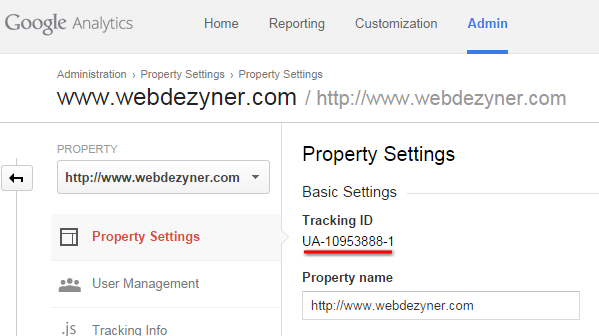
    Sign up for Google Analytics if you don’t already have an account. Create a new property, and identify its property tracking number by opening up the relevant property, clicking on the Admin tab at the top, and on the next page clicking on Property Settings.

    Google Analytics Property Settings

    The next step is to enable eCommerce tracking in your Google Analytics account. For this, again click on the Admin tab, select Ecommerce Settings, and change the status to ON.

    Set Google Analytics Ecommerce Settings to On

    Now the last step is to enter that tracking number into Magento and to enable tracking. For this purpose we’ll go to System > Configuration > Google API > Google Analytics. Here enter the tracking number, and enable it. Don’t forget to hit Save Config at the end.
    Enable Google Analytics in Magento
    With all these steps completed, we have built a fairly good SEO foundation for our Magento store. 
    In the next parts of this series, I’ll guide you further on how to improve your Magento website from an SEO perspective. At the end of the series, I hope you’ll have a fully SEO-optimized Magento website.
    Please leave your feedback and questions in the comments!

Comments

The Visitors says
Download Free Software Latest Version