Badblog

welcome to our blog

We are Learncodz.


Posts

Comments

The Team

Blog Codz Author

Connect With Us

Join To Connect With Us

Portfolio

  • Running Android on a Mac

    Android is a popular mobile operating system that has a wide library of apps, some of which are useful on the desktop. Luckily, because Android is open source, it can be run on just about any device, including a Mac. 
    In order to run a full install of Android on a Mac, you'll need to set up and install an Android virtual machine. 
    And though there's a ton of virtualization software available for the Mac, I'll you how to create an Android virtual machine using Virtualbox, a free open-source piece of virtualization software by Oracle. 


    Installing Virtualbox on the Mac
    Installing Virtualbox on the Mac. 

    To start, download Virtualbox for OS X, free of charge, and open the downloaded image. Run the Virtualbox.pkg package and follow the on-screen prompts to install the app on the Mac.
    Download Android for x86, a modified version of Android that's developed to run on Intel-based computers. Do this by navigating to the Android for x86 website and finding the version of Android you'd like to install from the list of ISOs. 
    I'll be installing the Android 4.4 for x86 RC2 in this tutorial because it is, at the time of writing this tutorial, the most recent version of Android for x86. 


    Creating a new virtual machine in Virtualbox
    Creating a new virtual machine in Virtualbox. 

    Navigate to the Applications folder and launch Virtualbox. Look towards the upper left-hand corner of the application and click on the blue New button.


    Giving your new virtual machine a name and selecting its type
    Giving the new virtual machine a name and selecting its type. 

    You will be prompted to give the new virtual machine a name, and to select the type of virtual machine, and its version of software. 
    Name the machine whatever you'd like, select Linux from the Type drop-down menu, and select Other (32-bit) from the Version drop-down menu. 
    Click the Continue button from the lower right-hand side of the menu to continue the installation process. 
    Choose how much memory you'd like to allocate by using the slider that is located towards the center of the window or by typing it into the text-box located on the right-hand side of the window. Keep in mind that the virtual machine will run like a stand-alone Android device, so it's best to allocate 1GB or more of memory to the virtual machine. 
    Look towards the center of the Hard Drive menu and select the radio button that's located to the left of the Create a virtual hard drive now button and click the Create button from the lower right-hand-corner of the menu. 
    Make sure the VDI radio button is selected from the Hard drive file type menu and click the Continue button. 
    Select the the Fixed Sized button from the bottom of the Storage on a physical hard drive window and click Continue to continue to the virtual hard drive section of installation.


    Sizing and naming your Android virtual machines drive
    Sizing and naming the Android virtual machine's drive. 

    The virtual hard drive will be used to store the Android operating system and all content downloaded to the VM, so size the virtual drive accordingly. I recommend sticking somewhere between 8-10GB for light use, though you can make it bigger if you'd like. 
    Size the drive using the slider towards the center of the center of the window and click the Create button. When creating the virtual hard drive, it is normal for the Mac to beach ball for a few seconds.
    Look towards the left-hand side of the Virtualbox window, click on the new Android virtual machine, and click the green Start button from the top of the window.


    Selecting the Android ISO youd like to install to the newly created virtual machine
    Selecting the Android ISO you'd like to install to the newly created virtual machine. 

    At the bottom right-hand corner of the window and click on the yellow folder button. Select the Android ISO from the pop-up menu and click the Open button from the lower right-hand corner of the screen. The virtual machine will now boot into Android's installer. 
    Note: When you first click the mouse pointer into the new virtual machine, you'll be notified that your mouse is about to be used to control the virtual machine, and that to use your mouse and keyboard to control the Mac, you must tap the Host key on the keyboard. By default, the host key is the left Command key.


    Creating a new partition on the virtual hard drive
    Creating a new partition on the virtual hard drive. 

    Select the Install Android-x86 To Harddisk option that's located towards the bottom of the window using the arrow keys on the keyboard. 
    From the next window, click on the Create/Modify partitions button and look towards the bottom of the screen at the list of partition options. 
    Select the New button to create a partition and press the Return key twice to make it the primary partition as well as allow it to use the entirety of the virtual drive's space.
    Select the Write button from the list of partition options and the installation will fail (this is a good thing). 


    Selecting the partition youd like to format
    Selecting the partition you'd like to format. 

    Use the arrow keys to select the Quit button from the list of options, and you'll be redirected back to the Choose Partition window. 
    Select the sda1 Linux Swap drive and press the Return key on the keyboard where you will be brought to a list of format types. Key down to the ext3 option and press the Return key on the keyboard. 
    The installer will then prompt you to install boot loader GRUB and ask you if you'd like to install /system directory as read-write. Respond Yes to both of these prompts. 
    From the final screen of the Android installer, select the Reboot button. Once the Android installation restarts, look towards the upper left-hand-corner of the virtual machine's window and click the red menu button and, from the drop-down menu, select the Power-off button. 


    Removing the Android ISO from the storage tree
    Removing the Android ISO from the storage tree.

    Now, open the Virtualbox window and click into the Android virtual machine from the menu bar on the left-hand side of the screen.
    Towards the center of the Virtualbox window, click the Storage header. From the storage tree located towards the center of the window, select the option that's labeled the same as the Android ISO you downloaded earlier.
    Towards the right-hand side of the window, click on the small CD icon and select the Remove disk from virtual drive option from the drop-down menu.
    Boot the virtual machine by clicking the green Start button from the top of the Virtualbox window. Your new virtual machine will then boot into Android.
    Using Android on the Mac is simple. Clicking into the Android window will let you control the Virtual Machine using the keyboard and mouse and the back, menu, and home buttons are available for use from the bottom of the screen. To exit the VM and use your keyboard and mouse to control the Mac, tap the left Command key on the Mac's keyboard.
    When controlling the Android virtual machine, you can use your trackpad or mouse to control Android as you would on a touch screen. For example, to scroll through menus, just click and drag, and to tap a button, click on it. 


    Disabling mouse integration in Virtualbox
    Disabling mouse integration in Virtualbox.

    Note: If you have issues getting the mouse clicks to register in Android, click on the Machine button from the toolbar and select Disable Mouse Integration from the drop-down menu. Click back into the Android window and press the Capture button from the pop-up window. 
    Upon first boot, Android will greet you with a few setup screens. Follow the prompts on these screens, setting up your language settings, Google account, and other information.
    Note: Skip the Wi-Fi setup process as the Android virtual machine will use the Mac's existing network settings to access the internet.


    Accessing the app drawer in the Android VM
    Accessing the app drawer in the Android VM.

    To access all pre-installed apps on the Android virtual machine, click on the App Drawer button that's located towards the bottom of the menu to pull up the Android app launcher. 
    If you installed the Android 4.4 ISO I noted earlier in the tutorial, you can download new apps and content to the Android VM using the included Google Play app. To do this, launch Google Play from the app drawer and search the store for new apps. 
    Unfortunately, because the Android Virtual Machine is running on an Intel chipset, it will have compatibility issues with certain applications on Google Play. Finding apps that support x86 is hit or miss, so make sure you put your favorite x86-compatible app in the comments. 
    In this tutorial I've shown you how to install and use Android on a Mac. 
    Aside from some app incompatibility issues, the new virtual machine can be used to do just about anything you'd do on a standard Android device: from browsing the web to editing documents in Google Drive.
  • Getting Started with Android Studio

    Android Studio is a fairly new IDE (Integrated Development Environment) made available for free by Google to Android developers. Android Studio is based on IntelliJ IDEA, an IDE that also offers a good Android development environment. In this tutorial, I'll show you how to create a new Android project and take advantage of the features that Android Studio has to offer.
    Before start exploring Android Studio, you'll first need to download and install it. Note that you need to have JDK 6 or higher installed. If you're on Windows, launch the .exefile and follow the steps of the setup wizard. If you're running OS X, mount the disk image by double-clicking it and drag Android Studio to your Applications folder.
    If you've successfully completed the above steps, then your development environment should be set up correctly. You're now ready to create your first Android application using Android Studio. When you launch Android Studio for the first time, you should be presented with a welcome screen, offering you a number of choices to get you started.


    In this tutorial, we're going to choose the New Project option. However, you can choose Import Project if you'd like to import a project from, for example, Eclipse, into Android Studio. Android Studio will convert the Eclipse project to an Android Studio project, adding the necessary configuration files for you.
    If you select Open Project from the list of options, you can open projects created with either Android Studio or IntelliJ IDEA. By choosing Check out from Version Control, you can check out a copy of a project that's under version control. This is a great way to quickly get up to speed with an existing project.
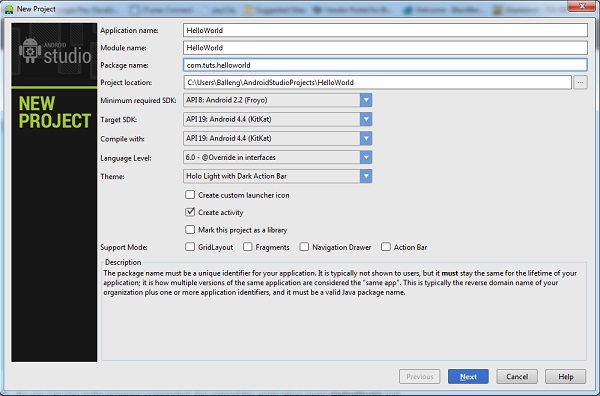
    To get us started, choose New Project from the list of options. This will show you a list of options to configure your new project. In this tutorial, we're going to create a simple application to show you some of Android Studio's most important features. I'm sure you agree that there's no better name for our project than HelloWorld.


    As you can see in the above screenshot, I've named my application HelloWorld and set the module name to HelloWorld. If you're unfamiliar with IntelliJ IDEA, you may be wondering what a module is. A module is a discrete unit of functionality that can be compiled, run, tested, and debugged independently. Modules contain source code, build scripts, and everything else required for their specific task.
    When creating a new project, you can also set the package name of the project. By default, Android Studio sets the last element of the project's package name to the name of the module, but you can change it to whatever you want.
    The other settings are the project's location on your machine, the minimum and target SDK, the SDK your project will be compiled with, and the project's theme. You can also tell Android Studio to create an Activity class and a custom launch icon for you, and whether the project supports GridLayout, Fragments, a Navigation Drawer, or an Action Bar.
    We won't create a custom icon for this application so you can uncheck the checkbox labeled Create custom launch icon. Click Next to continue setting up your project.
    Because we checked the checkbox Create activity in the previous step, you are asked to configure the Activity class Android Studio will create for you.


    Since we'll be starting with a blank Activity class, you can click Next to proceed to the next step in the setup process in which you're asked to name the Activity class, the main layout, and the fragment layout. You can also set the navigation type, which we'll leave at None for this project. Take a look at the next screenshot to see what your settings should look like.


    After clicking Finish, you'll be presented with Android Studio's user interface with the project explorer on the left and the workspace on the right. With your project set up in Android Studio, it's time to explore some of the key features of Android Studio.


    An Android Virtual Device or AVD is an emulator configuration, allowing you to model an Android device. This makes running and testing applications on a wide range of devices much easier. With an Android Virtual Device, you can specify the hardware and software the Android Emulator needs to emulate.
    The preferred way to create an Android Virtual Device is through the AVD Manager, which you can access in Android Studio by selecting Android > AVD Manager from the Tools menu.


    If you're development environment is set up correctly, the Android Virtual Device Manager should look similar to the screenshot below.


    To create a new AVD, click New... on the right, give the AVD a name, and configure the virtual device as shown below. Click OK to create your first AVD.


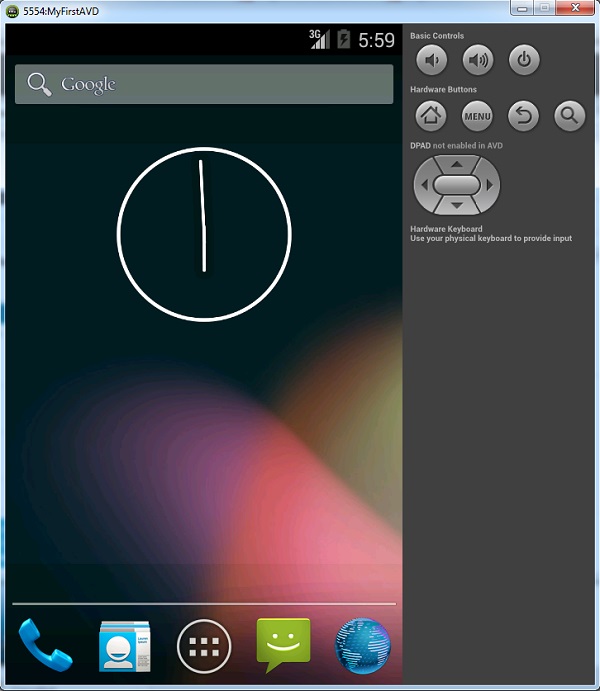
    To use your newly created AVD, select it from the list in the AVD manager, and click Start... on the right. If your AVD is set up correctly, the Android Emulator should launch as shown in the screenshot below.


    With the Android Emulator up and running, it's time to launch your application by selecting Run 'helloworld' from the Run menu. That's how easy it is to run an application in the Android Emulator.


    Android Studio's live layout feature lets you preview your application's user interface without the need to run it on a device or the emulator. The live layout feature is a powerful tool that will literally save you hours. Viewing your application's user interface is much faster using live layouts.
    To work with live layouts, double-click the XML layout file and select the Text tab at the bottom of the workspace. Select the Preview tab on the right of the workspace to preview the current layout. Any changes you make to the XML layout will be reflected in the preview on the right. Take a look at the screenshot below to get a better idea of this neat feature.


    There are a number of other advantages of the live layout feature that are worth pointing out. You can, for example, create a variation of the XML layout you're currently working on by selecting an option from the first menu in the Preview pane. You can, for example, create separate views for portrait and landscape and Android Studio will create the necessary folders and files for you.
    The second menu in the Preview pane lets you change the size of the device shown in the Preview pane. The third menu lets you change the orientation of the device shown in the Preview pane, which makes it easy to see how a layout looks in different orientations and using different themes.
    The fourth menu in the Preview pane gives you easy access to the Activity or fragment in which the layout is used. The Preview pane also lets you change the language used in the live layout to make it easy to preview a layout in different languages. The rightmost menu lets you change the API version.
    The Preview pane also includes controls to zoom in on the layout, refresh the Preview pane, or take a screenshot.
    Android Studio provides developers with a number of templates to speed up development. These templates automatically create an Activity and the necessary XML files. You can use these templates to create a basic Android application, which you can then run on a device or in the emulator.
    With Android Studio, you can create a template when you create a new Activity. Right-click on the package name in the project navigator on the left, select New from the menu, and choose Activity from the list of options. Android Studio then shows you a list of templates, such as Blank ActivityFullscreen Activity, and Tabbed Activity.


    You can also select Image Asset from the menu, which will launch a wizard that guides you through the creation process. Let me show you how to create a new Activitybased on the Login Activity template. Select the Login Activity option from the list ofActivity templates to fire up the wizard.


    As you can see in the above screenshot, I've named the Activity LoginActivity, set the Layout Name to activity_login, given the Activity a title of Sign In. The checkbox labeled Include Google+ sign in is checked by default. Uncheck it since we won't be using this feature in our example.
    You can optionally set the Hierarchical Parent of the new Activity. This will let you navigate back if you tap the device's back button. We will leave this field empty. After clicking Finish, Android Studio creates the necessary files and folders for you. If all went well, you should see a new Activity and Layout in your project.
    The next step is to set up the new Activity in the manifest file so it's used as the main Activity when the application launches. As you can see in manifest file below, the LoginActivity class has its own activity node.
    To make your application launch the LoginActivity you created, remove the activity node for the LoginActivity class and replace com.tuts.HelloWorld.MainActivity
    with com.tuts.HelloWorld.LoginActivity. The result is that the application will now use the LoginActivity class as its main Activity.
    When you build and run your application in the emulator, you should see a screen similar to the one shown below. This means that we've successfully replaced the blankActivity class with the newly created LoginActivity class.


    Testing your code is one thing, but it's equally important to apply best practices when writing code. This will improve performance and the overall stability of your application. It's also much easier to maintain a properly structured project.
    Android Studio's includes Android Lint, a static analyzer that analyzes your project's source code. It can detect potential bugs and other problems in your code that are the compiler may overlook.
    The below screenshot, for example, tells us that the LinearLayout in this layout is of no use. The nice thing about Android Lint is that it gives you a reason for the warning or error, which makes it easier to fix or resolve.


    It's good practice to run Android Studio's lint tool from time to time to check your project for potential problems. The lint tool will even tell you if you have duplicate images or translations.
    To run the lint tool, select Inspect Code… from the Analyze menu in Android Studio to start the process. When Android Studio has finished inspect your project, it will present you with the results at the bottom of the window. Note that in addition to Android Lint, Android Studio performs a number of other checks as well. Simply double-click an issue to navigate to the file in which the problem is located.


    Android Studio has a rich layout editor in which you can drag and drop user interface components. You can also preview layouts on multiple screen configurations as we saw earlier in this tutorial.
    The rich layout editor is very straightforward to use. We first need a layout to work with. Navigate to the layout folder in your project's res folder, right-click the layout folder, and select New > Layout resource file from the menu that appears.
    Give the new layout a name, set its root element, and click OK. Android Studio will automatically open the layout in the editor on the right.


    At the bottom of the editor, you should see two tabs, Design and Text. Clicking theText tab brings up the editor, allowing you to make changes to the currently selected layout.
    Clicking the Design tab brings up another editor that shows you a preview of the layout. To add a widget to the layout, drag it from the list of widgets on the left to the layout on the right. It's that simple.


    In this tutorial, we've taken a brief look at some of the key features of Android Studio. It is very similar to IntelliJ IDEA, but it contains a number of important enhancements that make Android development easier, faster, and more enjoyable.

Comments

The Visitors says
Download Free Software Latest Version